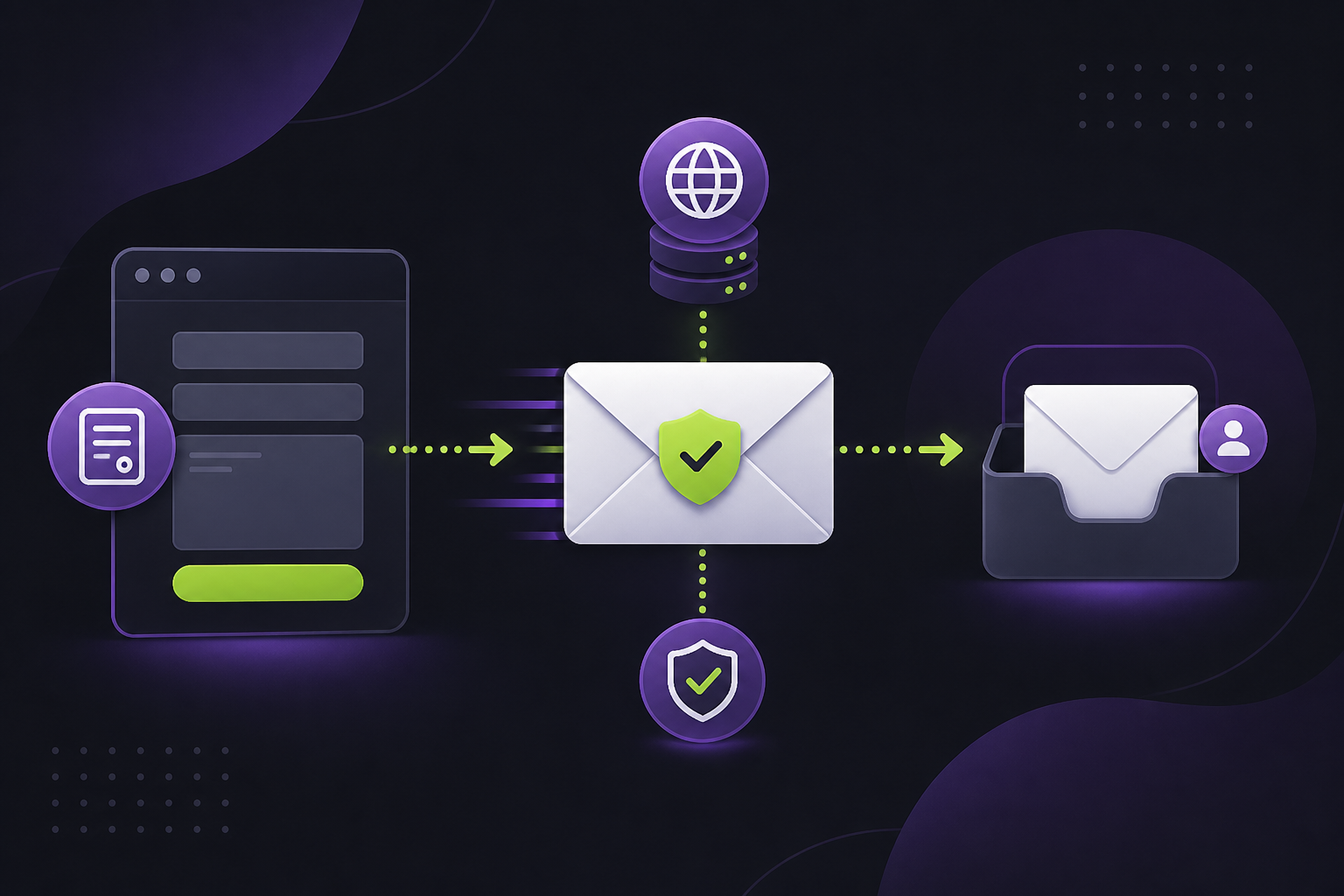
A form submission is only a lead if it reaches someone. If visitors say they contacted you but no notification appears, do not start by rebuilding the form. First, trace the email path: the form creates the message, WordPress hands it to a mailer, the mailer identifies the sending domain, and the recipient mailbox decides whether to accept, filter, or reject it.
This guide is for small-business WordPress sites whose contact-form notifications or confirmations are landing in spam. It focuses on a practical, low-risk fix—not on promises that every mailbox will treat every message identically.
Why WordPress form emails fail
By default, WordPress uses wp_mail() to hand a message to the server’s mail system. A successful handoff does not prove that the recipient received the message; WordPress’s own documentation makes that distinction. The recipient still evaluates the sender, authentication, content, reputation, and its own filtering rules.
The common failure is a mismatch: a form uses a visitor’s address in the visible From field, or WordPress sends from a generic server address that your domain has not authorized. That makes the message harder for receiving systems to trust and makes replies go to the wrong place.
The four-part form-email check
Use an address you can inspect, record the time, and check inbox, spam, and the form plugin’s entry log.
Choose a From address on your domain and use Reply-To for the person who completed the form.
Confirm SPF and DKIM for every service that sends as your domain; add DMARC to monitor alignment.
Use the provider’s supported sending method, then keep an eye on logs, bounces, and missed-lead reports.
Equivalent text: A form email must be generated, sent from a controlled address, authenticated by the domain’s DNS records, and monitored after delivery. A failure at any stage can look like “the form is broken.”
Fix 1: test the exact notification path
Start with a test submission from a non-business address. Capture the confirmation page, the plugin entry, the recipient inbox, and the spam folder. If the form entry exists but the notification does not, the submission worked; focus on mail delivery. If neither exists, troubleshoot the form, validation, integration, or server errors first.
Then inspect the received message’s headers. Look for the visible From domain and authentication results such as SPF, DKIM, and DMARC. If the recipient never receives it, use your form plugin’s log or your mail provider’s event log to identify whether the provider accepted, deferred, bounced, or suppressed the message.
Fix 2: separate From from Reply-To
Your notification should use a stable address on the website’s domain in the From field. For example, a Quad Cities contractor could send from website@examplecontractor.com while assigning the homeowner’s submitted address to Reply-To. When the office clicks Reply, the response still goes to the prospective customer; the original message has a sender your domain can authenticate.
This also prevents a common anti-spoofing problem. A form should not claim it sent mail from an address it does not control. Receiving systems increasingly check whether the From domain aligns with authenticated sending domains.

Fix 3: authenticate every service that sends as your domain
Authentication records live in DNS. Your email host, SMTP provider, transactional email provider, CRM, newsletter platform, and WordPress mail plugin may each need setup instructions. Add only the records provided by the service you actually use—guessing at DNS values can break legitimate mail.
SPF and DKIM
SPF identifies authorized sending sources. DKIM adds a cryptographic signature. Google’s sender guidance requires SPF or DKIM for all senders to personal Gmail accounts and recommends all three methods.
DMARC
DMARC evaluates alignment between the visible From domain and SPF or DKIM, then publishes a handling policy and can send reports. Start in monitoring mode only after SPF and DKIM are working.
For a business that sends only a handful of form notifications, these checks are still worthwhile. Google explicitly recommends SPF, DKIM, and DMARC for domains even though its stricter bulk-sender requirements apply to high-volume senders.
Do not publish two SPF records
SPF is one DNS TXT record per domain. If you already have one, incorporate the new provider’s authorized mechanism using its documentation instead of adding a second independent SPF record. Ask the domain or mail provider to validate the combined record before saving it.
Start DMARC in monitoring mode
DMARC.org’s deployment sequence is sensible for small businesses: establish SPF and DKIM, check alignment, publish a monitoring policy, review reports, and tighten the policy only when every legitimate sender is accounted for. A rushed quarantine or reject policy can block your own CRM, receipts, or form confirmations.
Fix 4: use the provider’s supported WordPress mail path
WordPress does not operate the mail server; it formats and submits the message. A managed host may provide a supported transactional service, or your email provider may offer SMTP or an API connection. Choose the route recommended by the provider that owns the sending identity and keep credentials out of page content.
- Create or confirm a real sending mailbox on the website’s domain.
- Configure the form notification From address to use that domain.
- Set Reply-To to the form’s email field.
- Connect WordPress through the provider-supported SMTP or API method.
- Verify provider-issued SPF and DKIM records in DNS.
- Publish and monitor DMARC after authentication is confirmed.
- Submit tests to more than one mailbox provider and record the outcome.
What not to do when leads are missing
Also avoid treating a single successful test as proof. Test a normal message, a message with a longer request, and the customer confirmation if you send one. Make sure the business recipient sees the right details and can reply without editing an address.
When to bring in help
Ask for help when the site uses multiple mail platforms, the domain’s DNS is unfamiliar, notifications must feed a CRM, or a recent migration changed hosting or email. Those are configuration problems with real lead consequences, not just a checkbox inside a form builder.
QC Webworks can review the form, sender setup, DNS records, notification routing, and follow-up path as part of website maintenance or a broader marketing automation workflow. If you are rebuilding the form itself, start with the site’s guide to contact-form best practices and then make sure every valid submission reaches a real inbox.
Frequently asked questions
Why does my WordPress form say it sent an email when I never received it?
A successful WordPress mail call means the sending method accepted the message for processing, not that the recipient mailbox delivered it. Check the form entry, provider log, spam folder, and message headers to locate the failed step.
Should a contact form use the visitor’s email address as the From address?
No. Use an address on your own domain in From and place the visitor’s address in Reply-To. This supports authenticated sending and still lets the business reply directly to the visitor.
Do small businesses need SPF, DKIM, and DMARC?
Google requires SPF or DKIM for all senders to personal Gmail accounts and recommends all three. For a small business, they also help identify authorized sending services and reduce spoofing risk. Set them up carefully because every legitimate sender must be included.
Can I fix WordPress email delivery by changing the form plugin?
Sometimes a plugin has a configuration issue, but delivery is often determined by the sending path and domain authentication. Confirm the plugin creates an entry before replacing it, then test the sender, provider route, and DNS records.
How do I know whether a form email went to spam or was never sent?
If the plugin recorded the submission, the form likely worked. Check the receiving mailbox’s spam folder and then the sending provider’s delivery or event log. A provider result such as bounce, suppression, or rejection is more useful than guessing from the inbox alone.
Sources
- WordPress Developer Resources: wp_mail() — a true result does not guarantee recipient delivery.
- WordPress Advanced Administration: Mail — WordPress formats mail while the server or remote SMTP service handles sending.
- Gmail Help: Email sender guidelines — current authentication requirements and recommendations.
- DMARC.org: Overview — how DMARC builds on SPF and DKIM and a staged deployment approach.