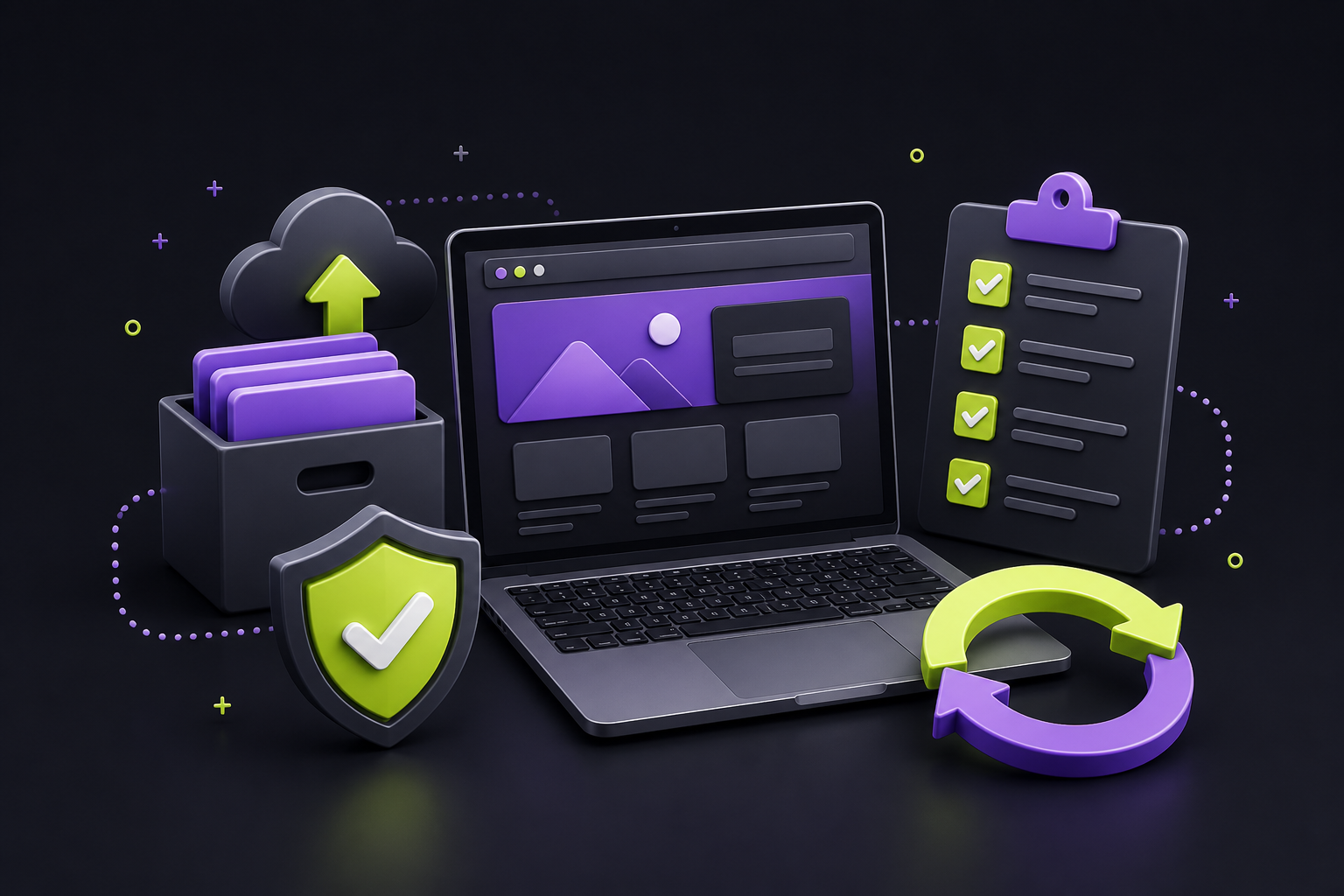
Updating WordPress core, plugins, and themes carries risks that can disrupt forms, bookings, or checkout flows on a small-business site. A practical routine — confirming a restorable backup, reviewing changelogs, applying changes in a low-impact window, and verifying critical pages afterward — keeps maintenance manageable without treating it as an emergency.
Staging environments, a controlled update order, and a simple monthly maintenance log reduce the chance of undetected failures. Auto-updates can work well for sites with monitoring and recovery plans in place, but higher-risk or heavily customized sites benefit from deliberate testing before and after each change.
Direct answer: Before updating WordPress, plugins, or a theme, make a current restorable backup, note the changes you are about to apply, test high-value pages and forms, and update in a controlled order. For a small-business site, the goal is not to avoid updates; it is to make every update reversible and verifiable.
WordPress updates can close security issues, fix bugs, and improve compatibility. They can also expose a conflict in an old plugin, a custom theme change, or a third-party booking and payment connection. A short pre-update routine gives a Quad Cities business a clear way to reduce risk without treating routine maintenance as an emergency.
What to check before a WordPress update
Start with the pages and actions that create value: service pages, contact and quote forms, online scheduling, phone links, checkout, and the dashboard login. WordPress documentation recommends having a current backup before plugin or core updates. A backup only helps if you know where it is and how to restore it.
- Confirm a current full backup. Include both files and the database, record the completion time, and confirm who can restore it.
- Review the update list. Read the plugin or theme changelog for major changes, dependencies, and compatibility notes instead of applying everything blindly.
- Check for custom work. A child theme or a documented customization protects changes better than editing a parent theme directly.
- Write down a rollback path. Know the hosting, backup, or maintenance contact and the exact action to take if a critical page fails.
- Choose a low-impact window. Avoid updating during a promotion, event, appointment rush, or other period when a broken conversion path would be costly.
A four-step WordPress update routine
Create and confirm a current restorable backup of files and database before changing anything.
Review changelogs, dependencies, customizations, and the pages that must keep working.
Apply the planned changes in a low-impact window, using staging when the site is complex.
Test the public site, forms, booking or checkout, key pages, and error logs before calling the task complete.
Equivalent text: make a recoverable backup, understand the update and critical dependencies, apply it carefully, then test the real paths customers use.
Use staging when a mistake would disrupt sales
A staging site is a private copy used to test changes before the live site. It is especially useful for ecommerce, membership, booking, lead-routing, multilingual, or heavily customized sites. Test the same actions a customer takes: submit a form, complete an appointment request, add an item to cart, receive an email, and use the site on a phone.
Staging is not a magic guarantee. It can differ from production in caching, payment credentials, traffic, connected services, and content. Treat it as a risk-reduction step, then run a short live verification after the update.
Choose an update order that makes troubleshooting easier
There is no universal sequence for every site, but changing one logical group at a time makes a failure easier to isolate. Start by recording the installed versions. If the site has a critical theme or plugin with a documented compatibility requirement, follow that vendor guidance. Otherwise, avoid combining a core update, a theme rewrite, and a large plugin batch when a staged approach is practical.
Verify the paths that lead to inquiries and revenue
After an update, do more than look at the homepage. Open the site in a private browser window, check a major service page, and complete a controlled test of the primary conversion route. Confirm that form notifications arrive where expected, booking or checkout reaches its success state, and important mobile buttons still work.
For a local business, it is also sensible to test the phone number, map or directions link, contact page, and any embedded scheduling widget. If you use analytics, compare a successful test with the key event or lead-tracking setup described in our GA4 lead-tracking checklist.
When automatic updates make sense
WordPress lets administrators opt into plugin and theme auto-updates individually. That can be a sensible choice for a well-maintained site with a current backup and monitoring, especially for routine fixes. It is less comfortable when a site has fragile custom integrations or no one assigned to review update emails and customer-facing paths afterward.
The decision is operational, not ideological: automate the changes your team can safely recover from and monitor; plan higher-risk changes with testing and a responsible owner. If your site has been accumulating updates because no one owns the process, QC Webworks website maintenance can help establish a safer maintenance rhythm.
A simple monthly maintenance record
Keep a short log with the date, backup reference, changes applied, person responsible, pages tested, and anything unusual. This record prevents the familiar “what changed?” scramble when a form or integration stops working days later. It also helps a future web partner understand the site without guessing.
Frequently asked questions
Should I update WordPress plugins as soon as an update appears?
Apply updates promptly, particularly security-related ones, but first make sure you have a current restorable backup and a way to test critical functionality. For a business-critical or customized site, review the change and use staging when appropriate.
What should a WordPress backup include?
A useful recovery backup includes the database and site files, including themes, plugins, uploads, and configuration-related files. Verify the backup location and restoration process rather than assuming a host backup is ready when needed.
Can automatic updates break my website?
They can reveal compatibility problems or replace changes made directly in update-managed files. Individual auto-update settings, dependable backups, monitoring, and update-safe customizations make the risk more manageable.
Do I need a staging site for every update?
No. A small, standard site may use a careful backup-and-verify routine. Staging becomes more valuable as the site adds ecommerce, bookings, memberships, custom code, complex forms, or high cost for downtime.
What should I test after a WordPress update?
Test the homepage, a key service page, navigation, mobile layout, contact or quote forms, booking or checkout, confirmation emails, and any integrations that directly affect customer contact or revenue.