
Most small business GA4 properties were set up once, in a hurry, by whoever built the website, and nobody has looked at the settings since. The reports still show numbers, so it feels like it works. Then you try to answer a simple question, like how many contact forms came from Google last month, and the number is zero, double what your inbox says, or credited to PayPal.
The audit checklists that rank for this search are written for ecommerce teams with BigQuery and a tag manager specialist. This one is for a business with a WordPress site, a contact form, maybe a booking tool, and an owner who wants numbers they can act on. You can do it in an afternoon without writing code.
What a GA4 audit should check on a small business site
A GA4 audit answers one question: can you trust the numbers you use to make decisions? For a local business those numbers are short. Where visitors come from, which pages they land on, and how many become leads (form fills, calls, bookings). Everything in the checklist below serves those three.
It does not need to cover ecommerce item reports, BigQuery exports, server-side tagging or predictive audiences. On a 15-page service site they are a distraction.
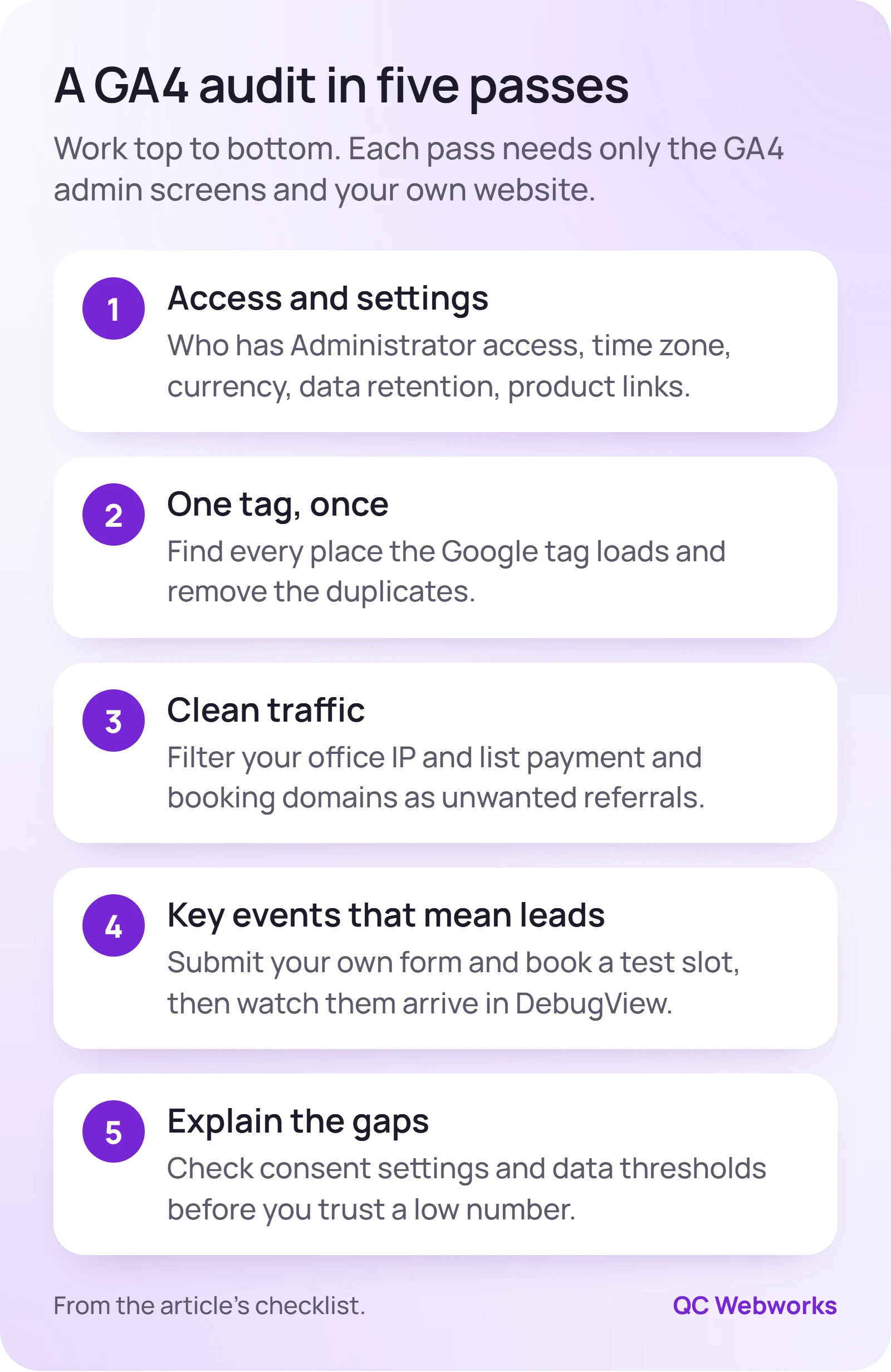
Pass 1: access, ownership and property settings
Start in Admin. You need the Administrator role to see and change everything here; the Editor role can change settings but cannot manage users, according to Google’s access and roles documentation.
- The business owns the account. In Account access management, a company email you control should hold Administrator. If the only admin is a former agency or a freelancer’s personal Gmail, fix that first.
- Old vendors are removed. Delete anyone who no longer works on the site. Give a current vendor Editor, not Administrator.
- Time zone and currency match the business. Check Property details. A property left on Pacific time shifts every daily report two hours for a Central time business.
- Data retention is 14 months. In the property’s data settings, open Data retention. Standard properties offer 2 or 14 months, and the setting limits explorations and funnel reports, not the standard reports (Google’s data retention page). If it says 2 months, change it.
- Search Console is linked. Open Product links, then Search Console links. Without it you cannot see search queries next to landing page behavior.
- Google Ads is linked if you run ads. Open Product links, then Google Ads links, so key events can feed ad bidding.
Tip. Keeping the account in the business’s name is our rule, not Google’s. It costs nothing and saves the week it takes to rebuild history when a vendor relationship ends badly.
Pass 2: is the Google tag installed once?
Duplicate tags are a common WordPress problem, and nothing in the GA4 interface warns you about them. A site picks up a tag from the theme settings, then someone installs Site Kit or a GA plugin, then an ads manager adds Google Tag Manager with its own GA4 tag. Every page view now counts two or three times.
To check, open your home page, view the source and search for your measurement ID (it starts with G-). Then do the same inside your Tag Manager container if you use one. You want exactly one place that sends page views to that ID.
<!-- from a theme "header scripts" box -->
<script async src="https://www.googletagmanager.com/gtag/js?id=G-AB12CD34EF"></script>

<!-- from a WordPress analytics plugin -->
gtag('config', 'G-AB12CD34EF');
Signs you have a duplicate even before you look: an engagement rate near 100%, views per session that make no sense for a small site, or two page_view events a fraction of a second apart in DebugView. Pick one install method, remove the others, and add a GA4 annotation with the date so you remember why the numbers dropped.
Pass 3: how to block your own IP address in GA4
Your staff open the website all day: to send a link to a customer, check hours, or test the form. On a site with a few hundred visits a month, that can be a real share of traffic. GA4 handles it in two parts, a definition and a filter, both described in Google’s guide to filtering out internal traffic.
- Find your office’s public IP address
Search “what is my IP” from the office network. If your internet provider changes it often, note that, because a changing IP needs checking every few months.
- Define internal traffic
Go to Admin, Data streams, your web stream, Configure tag settings, Show more, Define internal traffic. Add the IP with “IP address equals”. GA4 now tags those visits with a traffic_type value.
- Turn the filter on
Go to Admin, Data filters. The Internal Traffic filter can be in Testing, Active or Inactive. Leave it in Testing for a day and confirm your own visits show up under the test filter name, then switch it to Active.
- Expect no change to old data
Google’s data filters page says filters apply from creation forward, can take 24 to 36 hours to start working, and an exclude filter permanently drops matching data. Test before you activate.
Staff working from home or on phones will still be counted. For most small businesses the office filter catches enough to matter, and chasing every device is not worth the time.
Pass 4: referrals that steal credit for your leads
When a customer pays an invoice through a payment page or books on a scheduler hosted on another domain, then comes back to your thank-you page, GA4 can start a new session credited to that domain. Your lead source report then says “paypal.com” or the booking vendor instead of Google or your ad. There are two fixes, and which one applies depends on who controls the other domain.
If the other site is a vendor you cannot tag (a payment processor, a hosted scheduler)
List it under Configure tag settings, Show all, List unwanted referrals. Google names payment processors as the main use for this setting (unwanted referrals help page).
If both domains are yours and both run the same Google tag
Set up cross-domain measurement under Configure your domains, so one visit stays one session across both sites.
If the booking happens in an embedded widget on your own page
There is usually no referral problem. Your job is making sure the booking fires an event GA4 can see, which is Pass 5.
To find the culprits, open the Traffic acquisition report, change the dimension to Session source, and look for any payment, email or booking domain in the top 20 rows. Our guide to setting up online booking for a small business covers the common scheduler tools and how they connect to a site.
Pass 5: do your key events count real leads?
Key events (what GA4 used to call conversions) are the numbers an owner actually uses. They are also where small business properties are most often wrong, in both directions.
Enhanced measurement can send form_start and form_submit events automatically, per Google’s enhanced measurement events list. That event can fire on newsletter boxes, search forms and forms that failed validation, and it fires whether or not the message reached anyone. Marking it as a key event inflates leads. The opposite problem is just as common: a key event built on a thank-you page that the form plugin stopped redirecting to after an update, so leads read zero for months.
| Lead type | Weak signal | Better key event |
|---|---|---|
| Contact form | Automatic form_submit | A thank-you page view, or an event your form plugin fires only on a successful send |
| Phone call | Every click on a phone number | Tap-to-call clicks, counted separately from completed calls in your phone system |
| Booking | Clicks on the Book button | The scheduler’s confirmation event or confirmation page |
| Quote request | Visits to the quote page | A successful quote form send |
Then test each one the way a customer would. Open DebugView in Admin, use Tag Assistant’s preview on your site, submit your own form, tap your phone number and book a test slot. Each action should produce the key event once, within a minute. If the form says sent but nothing arrives in your inbox either, work through our missing form submission checklist before blaming analytics. To build the events from scratch, see how to track website leads in GA4.
Why GA4 numbers look low after a clean audit
After a clean audit the numbers often drop, and may still look lower than your booking software or inbox. Two GA4 behaviors explain most of the gap.
Consent mode
If your site has a cookie banner connected to Google’s consent mode, visitors who decline are handled one of two ways. Basic consent mode blocks Google tags until the visitor agrees. Advanced consent mode loads tags before the banner and sends cookieless pings when consent is declined, and Google uses modeling to fill some gaps (Google’s consent mode page). Know which one your banner uses, because it decides how much traffic you can see.
Data thresholds
GA4 withholds some rows, such as demographics and search query detail, when user counts are small, and you cannot turn that off (Google’s data thresholds page). Widen the date range before deciding a page has no traffic.
Neither of these is a broken setup. Write them down in your audit notes so the next person does not try to fix them.
How long a GA4 audit takes, and when to hand it off
For a single-site small business property, the passes above break down roughly like this. The times are illustrative estimates for someone comfortable in GA4 admin, not a benchmark.
| Pass | Typical time | Needs |
|---|---|---|
| Access and settings | 20 minutes | Administrator role |
| Duplicate tags | 20 to 40 minutes | WordPress and Tag Manager access |
| Internal traffic | 15 minutes, plus a day in Testing | The office network |
| Referrals | 20 minutes | A list of your payment and booking tools |
| Key events | 45 to 90 minutes | A way to submit test leads |
If the audit turns up duplicate tags tangled across a theme, a plugin and an old agency’s container, or key events that need custom code from your form or booking tool, that is setup work rather than an audit. Our analytics and tracking setup is $699 and covers the tag, key events, filters and a tested handoff, in an account you own.
Your next step: block out an afternoon, open Admin with this page beside it, and write down what you find in each pass before you change anything. Fix ownership and duplicate tags first, because every other number depends on them.
Frequently asked questions
How often should a small business audit GA4?
Once a year, and after any website rebuild, theme change, new form plugin or new booking tool. Those changes are what break tracking. A quick monthly look at the key events report catches a lead count that suddenly drops to zero.
Does blocking my IP address remove old visits from GA4?
No. Data filters work from the time they are active onward and do not change historical data. Expect a visible drop in traffic from the activation date, and note it so it is not mistaken for a real decline.
Can I audit GA4 with Viewer access?
Partly. A Viewer can see settings and reports, so you can spot problems, but you need Editor to change settings and Administrator to manage users. If nobody at the business has Administrator, that is the first finding.
Why does GA4 show fewer leads than my inbox?
The usual causes are a key event tied to a thank-you page that no longer loads, visitors who declined cookies under basic consent mode, or leads that came by phone and were never tracked. Test the event yourself in DebugView before assuming the data is lost.